

Are You Ready for Microsoft 365 Mandatory MFA?
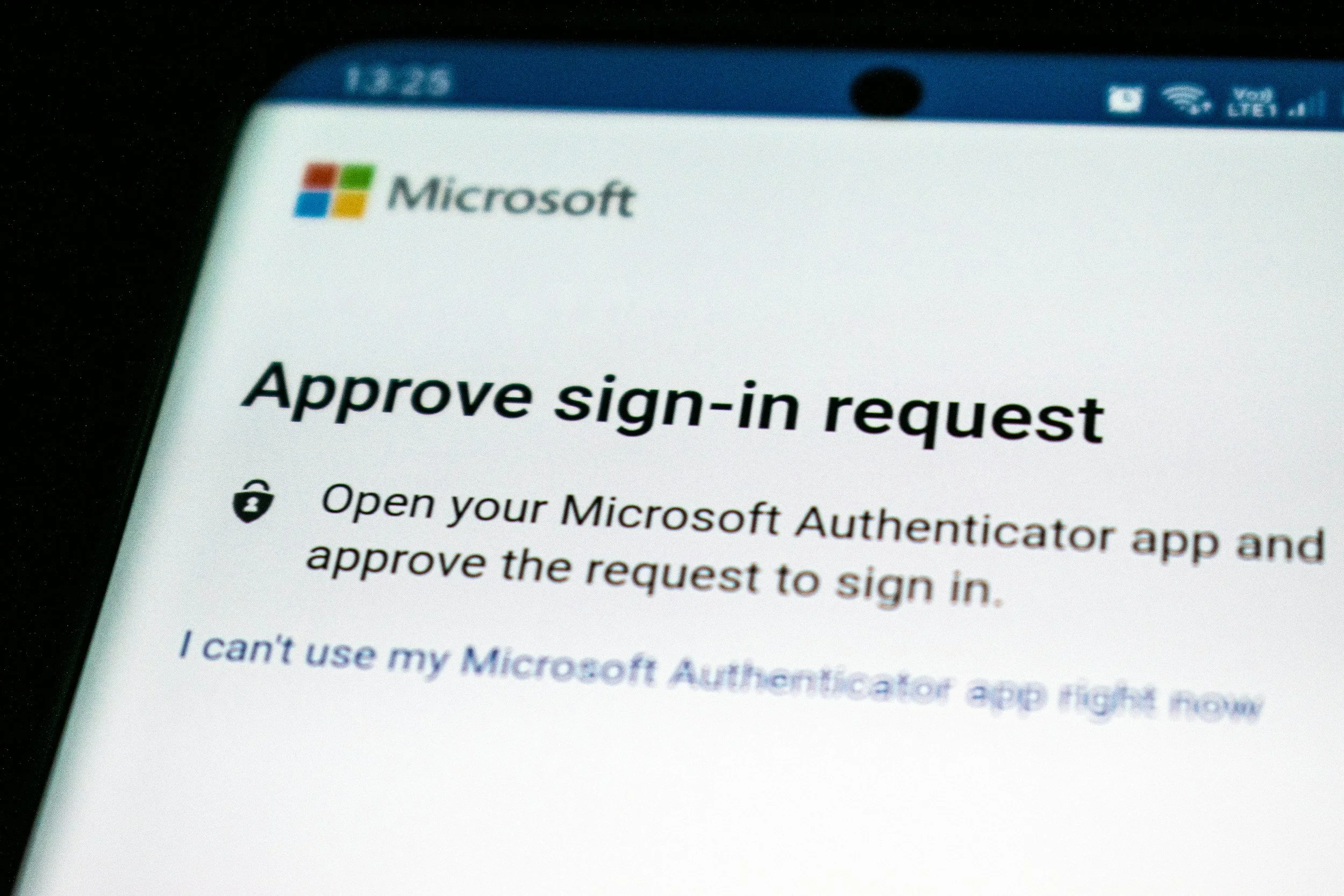
Microsoft has been steadily tightening security across Microsoft 365 and Microsoft Entra.
One of the biggest changes is simple:
More Microsoft administrative access now requires multi-factor authentication, whether your organization previously required it or not.
For most businesses, that is a good thing.
But it can also expose old accounts, outdated IT processes, shared administrator logins and automated systems that were never designed for modern authentication.
If your company uses Microsoft 365, this is a good time to make sure MFA is not just technically enabled but actually configured correctly.
What Is Microsoft Changing?
Microsoft has been rolling out mandatory MFA in phases.
Beginning in 2024, Microsoft started requiring MFA for accounts accessing several administrative environments, including the Azure portal, Microsoft Entra admin center, and Microsoft Intune admin center.
Microsoft also began gradually enforcing MFA for access to the Microsoft 365 admin center starting in February 2025.
A second phase began rolling out in October 2025 for additional administrative tools, including Azure CLI, Azure PowerShell, the Azure mobile app, Infrastructure as Code tools, and certain Azure REST API operations.
Microsoft says organizations already enforcing MFA generally should not see a significant change for affected users.
Does This Mean Every Microsoft 365 User Is Suddenly Required to Use MFA?
Not exactly.
This is where the announcement can be confusing.
Microsoft's current mandatory enforcement is primarily focused on administrative access and Azure management activities.
It does not mean Microsoft has suddenly imposed the exact same mandatory MFA policy on every employee signing into Outlook, Word or Teams.
However, that does not mean ordinary employee accounts should remain password-only.
Microsoft strongly recommends requiring MFA for users, particularly administrators and accounts with access to sensitive information or financial systems. Microsoft states that MFA can block more than 99% of account compromise attacks.
For most businesses, the practical standard should be:
MFA for every employee wherever possible, with stronger protection for administrators and high-risk accounts.
What Is MFA?
Multi-factor authentication requires more than one type of proof that you are really you.
For example:
You enter your password.
Microsoft asks you to approve the login using another authentication method.
That second factor might be:
Microsoft Authenticator
a passkey
Windows Hello for Business
a FIDO2 security key
another approved authentication method
An attacker who steals a password therefore still has another obstacle to overcome.
That is especially important for Microsoft 365 accounts because a compromised account can potentially expose email, contacts, SharePoint files, OneDrive files, Teams conversations, password-reset messages, financial correspondence and other business systems connected to Microsoft identities.
What Should Businesses Do Now?
For most organizations, the first step is not complicated.
1. Make Sure Every Administrator Uses MFA
Start with accounts that have elevated privileges.
That includes roles such as:
Global Administrator
Exchange Administrator
SharePoint Administrator
User Administrator
Authentication Administrator
other privileged IT accounts
Microsoft specifically recommends stronger, phishing-resistant authentication for critical administrative roles.
A compromised administrator account is significantly more dangerous than a compromised ordinary mailbox.
2. Check Whether Regular Employees Are Protected Too
Microsoft's mandatory administrative MFA rollout should not become an excuse to leave normal users unprotected.
Ask: Can any employee still access company email with only a password?
If the answer is yes, your Microsoft 365 security posture deserves a closer look.
Employee mailboxes are frequent targets because they contain the information attackers need to impersonate executives, vendors and accounting personnel.
That can lead directly to Business Email Compromise, invoice fraud and fraudulent wire transfers.
3. Stop Using Shared Administrator Accounts
This is a particularly important issue for growing businesses.
You may still have something like admin@company.com used by multiple people.
That creates several problems.
You may not know who actually made a change.
One person's authentication method may be shared or unavailable.
Employees may know credentials they no longer need.
And investigating suspicious activity becomes much harder.
Administrative access should generally be tied to identifiable users with appropriate permissions.
4. Look for Old or Forgotten Admin Accounts
This Microsoft change is a good excuse to review privileged access.
Look for:
former IT employees
previous IT vendors
temporary administrator accounts
test accounts
unused Global Administrators
old contractor accounts
accounts created for one-time projects
If someone no longer needs administrative access, remove it.
The fewer privileged accounts you have, the smaller the attack surface.
5. Review Service Accounts and Automation
This is one area where the mandatory MFA rollout can cause genuine technical problems.
Some organizations historically used ordinary Microsoft Entra user accounts for scripts, PowerShell automation, scheduled tasks, third-party integrations, or other unattended processes.
Those accounts cannot simply stop and approve an MFA notification.
Microsoft recommends moving these automated workloads away from user identities and toward authentication methods designed for automation, such as managed identities or service principals.
If your business has scripts or integrations built years ago, this is worth checking.
6. Decide How MFA Should Actually Be Enforced
Microsoft 365 provides different methods for enforcing MFA.
For smaller organizations, Security Defaults can provide basic identity protections and are available with Microsoft Entra ID Free.
Organizations with appropriate Microsoft Entra licensing can use Conditional Access policies for more control.
Conditional Access can take factors such as user identity, administrator role, device, location, application and risk into account when deciding whether additional authentication is required.
Microsoft notes that Conditional Access requires Microsoft Entra ID P1 or P2 licensing.
For a growing business, the goal should not simply be:
“Turn on MFA.”
The better goal is:
“Apply the right authentication requirements to the right users and systems.”
Not All MFA Is Equally Strong
MFA is an enormous improvement over password-only authentication.
But attackers have also adapted.
Modern phishing attacks can sometimes trick users into approving authentication requests or steal authenticated sessions after a user successfully logs in.
That is why Microsoft increasingly recommends phishing-resistant authentication such as:
passkeys
FIDO2 security keys
Windows Hello for Business
certificate-based authentication
Microsoft identifies these methods as stronger protection against sophisticated attacks.
That does not mean every business needs to distribute hardware security keys tomorrow.
It does mean businesses should understand that having MFA enabled and having a mature identity-security strategy are not necessarily the same thing.
What About Employees Who Don't Have Company Phones?
This comes up frequently.
Businesses sometimes avoid MFA because they do not want employees using personal phones for work.
That is an operational issue, but it does not justify leaving accounts protected by passwords alone.
Depending on the environment, alternatives may include:
company-owned devices
hardware security keys
Windows Hello for Business
passkeys
other approved authentication methods
The best approach depends on how employees work and what Microsoft licensing the organization uses.
Will MFA Break Outlook or Microsoft 365?
For most modern Microsoft 365 environments, properly implemented MFA should not disrupt normal day-to-day use.
Employees generally do not have to approve an MFA prompt every time they open Outlook.
Authentication behavior depends on several factors, including the device, application, session, policies and risk signals.
Problems are more likely when an organization still has old applications, legacy authentication, outdated Office installations, old service accounts, or improperly configured integrations.
Those issues should be identified before security requirements force them into the open.
MFA Is Only One Piece of Microsoft 365 Security
This is the most important takeaway.
A business should not assume:
“Microsoft requires MFA now, so our Microsoft 365 environment is secure.”
MFA helps protect identities.
It does not automatically protect against every Microsoft 365 threat.
A mature Microsoft 365 security review should also consider:
Administrator privileges
Suspicious login monitoring
Email phishing protection
Account forwarding rules
Inactive accounts
Device security
Endpoint protection
Legacy authentication
Conditional access
Mailbox permissions
Third-party application access
Employee security awareness
Attackers do not care which security product you purchased.
They look for whichever gap remains.
A Simple Microsoft 365 MFA Checklist
Business owners and IT decision makers can use this short checklist:
Do all administrators have MFA enabled?
Do all regular users have MFA enabled where appropriate?
Are any administrator accounts shared?
Are there old or unused administrative accounts?
Are former employees and former IT vendors completely removed?
Are scripts or automation still using ordinary user accounts?
Are you using Security Defaults or Conditional Access intentionally?
Are higher-risk accounts using stronger authentication?
Do you know who would respond if Microsoft flags a suspicious login?
If several of those answers are unclear, there may be more to review than simply Microsoft's new MFA requirement.
Why Microsoft Is Making MFA Mandatory
Passwords are easy to reuse, steal, phish, and expose in data breaches.
MFA adds another layer of protection, making a stolen password much less useful to attackers.
That is why Microsoft is requiring MFA for more administrative access instead of leaving it entirely up to individual businesses.
The Bigger Question Is Whether Your Microsoft 365 Environment Has Kept Up
For businesses with properly configured MFA and managed identities, Microsoft's rollout may be uneventful.
For others, it may expose:
shared administrator accounts
outdated automation
password-only users
forgotten Global Administrator accounts
Microsoft's MFA changes are more than a login requirement. They're a reminder that your Microsoft 365 tenant is a critical part of your company's cybersecurity environment.
Is Your Microsoft 365 Environment Actually Secure?
SNH Technologies helps businesses manage and secure Microsoft 365, Microsoft Entra, employee accounts, email, devices, and administrative access.
If your organization has grown but your Microsoft 365 security settings haven't been reviewed recently, this is a good time to make sure your configuration has kept up.